GIT CHEAT SHEET
NEW PROJECT
First create a new folder for the project (I recommend under a ‘bootcamp’ folder that also has a ‘gitlab’ folder ).
Example:
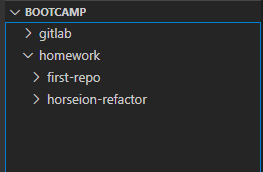
Create a new folder (I use ‘folder-name’ as an example folder / project / repo name).
1) (In VS Code) -> Right Click project folder -> “Open In Integrated Terminal”
Example:
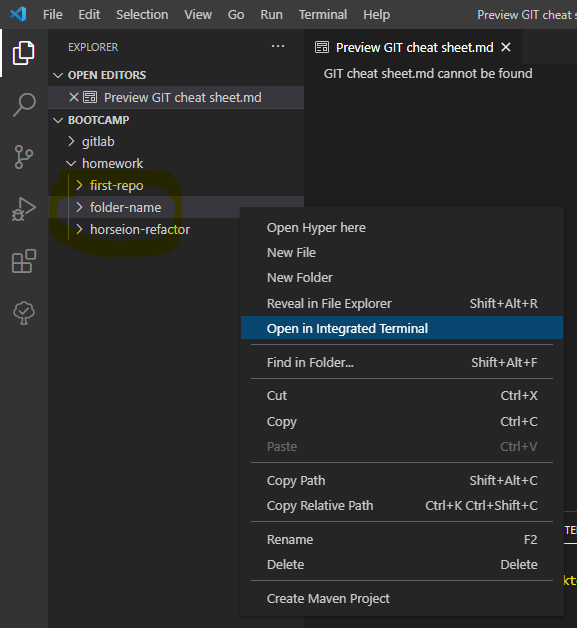
2) (In terminal) git init (enter)
3) git add . (enter)
4) git commit -m "Initial Commit" (enter)
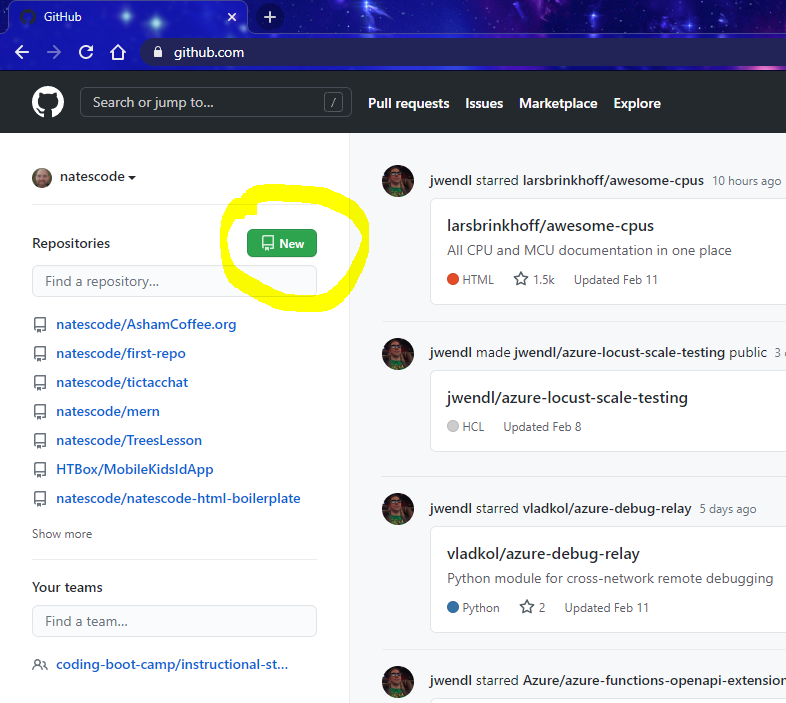
5) (In Chrome) github.com -> New (top left green button for new repo(sitories)) a) Give the project (repo) the same name as the folder b) (button) Create Repository
EXAMPLE
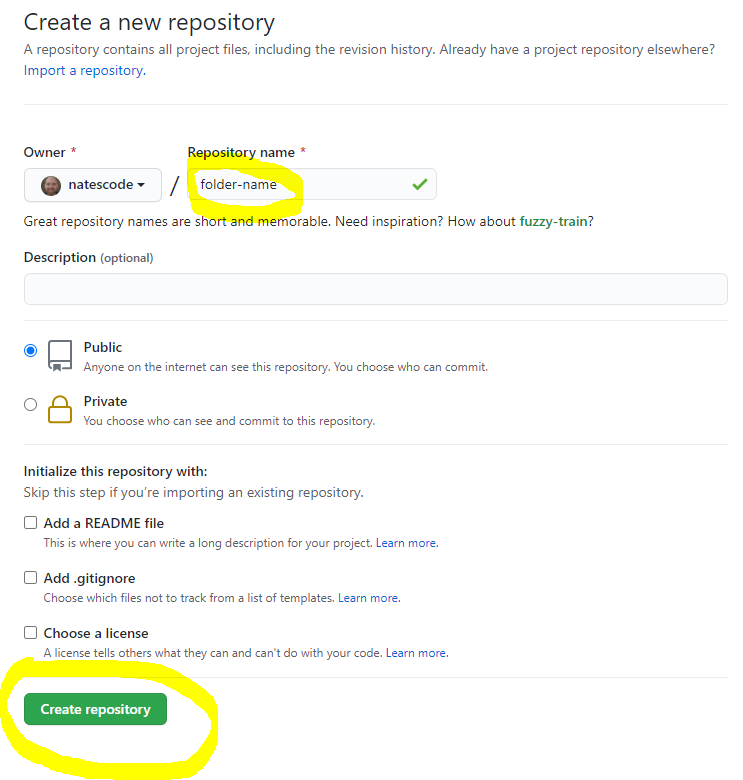
6) (In terminal) copy the commands from github and paste into terminal (you may have to hit enter again).
(YOUR github.com URL will be different)
EXAMPLE
// EXAMPLE
git remote add origin https://github.com/natescode/folder-name.git
git branch -M master
git push -u origin master 
SAVE and PUBLISH to github
git add .
git commit -m "your message of what you changed"
git pull
git push